

Mute notifications from one contacts can disrupt your daily routine and reduce productivity. Sometimes, you need peace from specific contacts without blocking them entirely. According to digital wellness experts at Media Watch UK, managing notification preferences has become essential for maintaining healthy digital boundaries.
Whether it’s an overly chatty friend or a colleague who sends non-urgent messages after hours, learning how to silent the notification from person helps you stay focused while preserving relationships. This guide covers multiple platforms and devices to help you customize your notification experience.
Additionally, muting notifications differs from blocking someone. When you mute notifications, you still receive messages but without sound alerts or pop-up notifications. This approach maintains communication channels while giving you control over when to respond.
Understanding Notification Controls
Modern smartphones and messaging apps offer various notification management options. However, the specific steps vary depending on your device and the app you’re using. Most platforms allow you to customize notifications for individual contacts rather than applying blanket settings.
Furthermore, notification controls have evolved significantly over the years. Today’s systems provide granular control over different types of alerts. You can silence calls while keeping text notifications active, or vice versa.
Muting Notifications on iPhone
Using Messages App
Open the Messages app and find the conversation with the contact you want to mute. Tap on the contact’s name at the top of the screen. Next, toggle on “Hide Alerts” to stop receiving notifications for this conversation.
The contact will still be able to send you messages. However, you won’t see banner notifications or hear alert sounds. The conversation will show a crescent moon icon indicating that alerts are hidden.
Managing Phone Call Notifications
Navigate to the Phone app and tap “Recents.” Find the contact’s number and tap the “i” icon next to their name. Select “Block this Caller” if you want to stop all communication, or use “Do Not Disturb” settings for more selective filtering.
Alternatively, you can add the contact to a custom group and apply specific Do Not Disturb rules to that group. This method provides more flexibility for managing multiple contacts simultaneously.
Silencing Android Notifications
Using Default Messaging App
Open your messaging app and locate the conversation thread. Tap and hold the conversation until a menu appears. Select “Mute notifications” or look for a bell icon with a slash through it.
Most Android devices allow you to choose the muting duration. You can select options like one hour, eight hours, one week, or indefinitely. This flexibility helps you manage temporary situations versus permanent preferences.
Managing Notifications in Settings
Go to Settings and select “Apps & notifications.” Find your messaging app and tap “Notifications.” Look for advanced settings that allow per-contact customization.
Some Android versions provide notification channels that give you even more control. These channels let you separate different types of notifications from the same app and manage them independently.
WhatsApp Notification Management
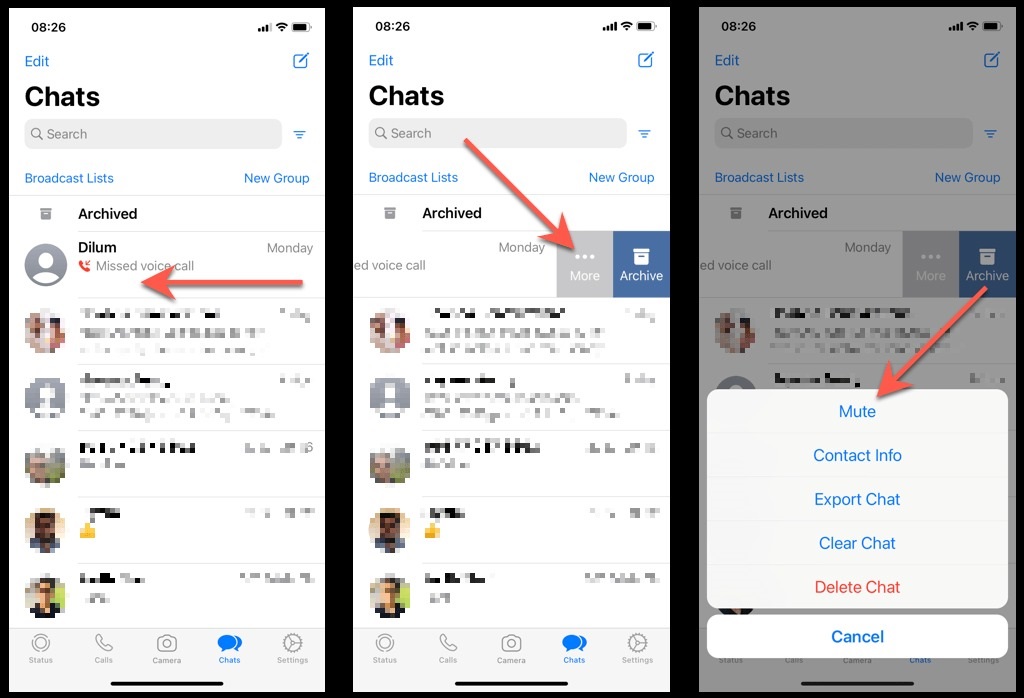
WhatsApp offers comprehensive notification controls across all platforms. Open the chat with the contact you want to mute. Tap on their name or profile picture at the top of the screen.
Select “Mute notifications” and choose your preferred duration. WhatsApp provides options for eight hours, one week, or one year. The chat will display a mute icon to remind you that notifications are disabled.
However, you’ll still see message previews in the chat list. The messages will appear without triggering sound alerts or vibrations. This feature works consistently across iPhone, Android, and WhatsApp Web.
Instagram Direct Message Controls
Instagram’s direct messaging feature includes notification controls for individual conversations. Open the conversation with the contact and tap on their username at the top.
Select “Mute messages” to stop receiving notifications for this conversation. Instagram also offers the option to mute both messages and call notifications separately, giving you precise control over different communication types.
Therefore, you can continue seeing their posts and stories while avoiding message notifications. This approach works well for maintaining social connections without constant interruptions.
Facebook Messenger Settings
Facebook Messenger provides detailed notification customization options. Open the conversation and tap on the contact’s name or profile picture. Look for notification settings in the conversation options.
You can mute notifications for specific time periods or indefinitely. Additionally, Messenger allows you to customize notification sounds, vibration patterns, and popup settings for individual contacts.
The platform also offers “Ignore messages” functionality, which moves conversations to a separate folder without notifying the sender. This feature provides an alternative to complete blocking while maintaining privacy.
Telegram Notification Options
Telegram offers advanced notification controls that surpass many other messaging platforms. Open the chat and tap on the contact’s name at the top of the screen.
Select “Notifications” to access detailed settings. You can disable notifications entirely, customize sound alerts, or set specific quiet hours for this contact. Telegram also supports notification scheduling based on your active status.
Moreover, Telegram’s secret chats provide additional privacy features, including self-destructing messages and enhanced notification controls. These features make it easier to manage sensitive conversations.
Email Platform Controls
Gmail Settings
Gmail allows you to filter emails from specific senders automatically. Create a filter by searching for the sender’s email address. Select “Create filter” and choose actions like “Skip the Inbox” or “Mark as read.”
This approach ensures emails from the contact don’t trigger notifications while still being accessible in your inbox. You can also set up labels to organize these messages automatically.
Outlook Management
Outlook provides rules and filters for managing email notifications. Go to Settings and select “Mail rules.” Create a new rule specifying the sender’s address and desired actions.
You can choose to move emails to specific folders, mark them as read, or prevent notification alerts. These rules work across Outlook’s desktop, web, and mobile applications.
Professional Communication Platforms
Slack Controls
Slack offers comprehensive notification management for individual team members. Click on the person’s profile and select “Notification preferences.” You can mute notifications from this person while keeping channel notifications active.
Additionally, Slack’s “Do Not Disturb” mode can be customized to allow messages from specific people while blocking others. This feature helps maintain professional availability while managing information overload.
Microsoft Teams Settings
Teams provides similar functionality through its notification settings. Right-click on a conversation and select “Turn off notifications.” You can also access advanced settings through the Teams preferences menu.
However, remember that muting individual notifications might affect team collaboration. Consider discussing communication preferences with colleagues to maintain professional relationships.
Best Practices for Notification Management
Start by identifying which contacts genuinely require immediate attention. Emergency contacts, family members, and key work colleagues typically deserve priority notification status.
Create different notification profiles for various times of day. Many platforms support scheduled quiet hours or automatic Do Not Disturb modes that activate during sleep or focus periods.
Furthermore, regularly review your notification settings as relationships and priorities change. What works today might not be appropriate in six months, so periodic adjustments ensure optimal communication management.
Troubleshooting Common Issues
Sometimes notification changes don’t take effect immediately. Try restarting the app or your device to ensure settings are properly applied. Additionally, check for app updates that might include notification improvements.
If you’re still receiving notifications after muting a contact, verify that you’ve adjusted settings in all relevant apps. Some contacts might reach you through multiple platforms, requiring individual configuration for each service.
System-level notification settings can also override app-specific preferences. Check your device’s main notification settings to ensure they’re not conflicting with your app configurations.
Read More Also: How Regular Deep Cleaning Transforms Home Upkeep
Conclusion
Managing notifications from specific mute notifications from one contacts helps you maintain focus while preserving important relationships. Modern devices and apps provide numerous options for customizing your communication experience without completely cutting off contact.
The key is finding the right balance between accessibility and peace of mind. Start with the most disruptive contacts and gradually refine your notification preferences based on your daily routine and communication needs.
Remember that these settings are reversible, so don’t hesitate to experiment with different approaches. Most importantly, communicate with important contacts about your notification preferences to avoid misunderstandings about response times.
Read More Also: Invisible Scarf Knot Technique: A Complete Guide
Frequently Asked Questions
Will the person know if I mute their notifications?
No, muting notifications is invisible to the sender. They can still send messages normally and won’t receive any indication that their notifications have been muted on your device.
Can I still see messages from muted contacts?
Yes, muting notifications only stops alerts and sounds. You’ll still receive all messages and can read them by opening the app manually. The messages appear in your inbox without triggering interruptions.
How do I unmute notifications from someone?
Follow the same steps you used to mute them, but toggle the mute setting off instead. Most platforms also show mute indicators that you can tap to quickly reverse the setting.
What’s the difference between muting and blocking someone?
Muting stops notifications while still allowing communication. Blocking prevents the person from contacting you entirely and typically stops message delivery. Muting is less severe and maintains the relationship.
Do muted notifications affect read receipts?
Generally, no. Read receipts work normally even when notifications are muted. The sender will still see when you’ve read their messages, maintaining transparency about your communication activity.




Leave a Reply